Occasionally, the OpenVPN-GUI icon  (gray when inactive) either doesn’t appear or disappears from the Windows system tray. This is a common Windows bug not associated with the OpenVPN program. If you try to launch OpenVPN-GUI again, it reports that it is already running. This is a correct report since it is running but just isn’t appearing in the tray where it is supposed to. There are many recommended solutions for this which involve disabling portions of the operating system or changing registry entries. We’ve found a much simpler and quicker solution.
1) Press the Ctrl and Alt and Delete keys at the same time. The Windows Task Manager will pop up.
2) Go to the Processes tab.
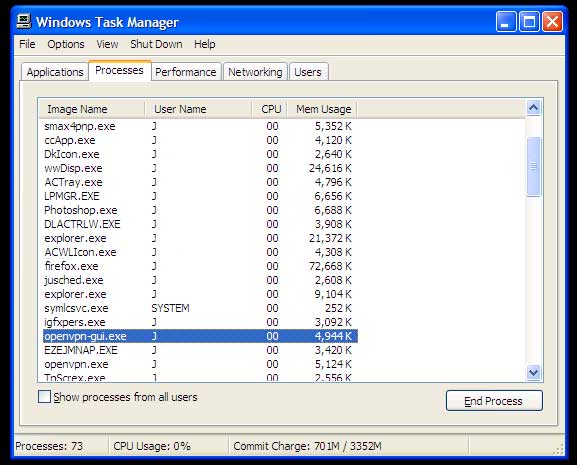
3) Select the line that says openvpn-gui.exe
4) Click on End Process.
5) Close the Task Manager by clicking on the red X in the upper right hand corner.
This will terminate the OpenVPN-GUI application allowing you to re-launch it.
6) Restart OpenVPN GUI by double clicking on the desktop icon (shown below) or the Start menu icon.

This will place the icon in the system tray and you can proceed as normal from that point.
The above illustrates this function on Windows XP. Windows Vista, Windows 7 and 8 work the same way but the screens will have the Vista or Windows 7 style and look a bit different than the image above. When initially pressing Ctrl-Alt-Del, Vista and Windows 7 will pop up a screen with several options. Select ‘Task Manager’ from that screen.