1) Sign up for the personal VPN service. We will send you a user name and password. Send us an email to let us know you are going to use the Virtual Machine VPN. Then we will send you a link to download the machine image. This file is approximately 1 GB in size.
2) Download the free VMWare version 2.5 player. (If possible, download over the Personal VPN service.) Click here for instructions on how to install the player on your computer.
NOTE: If you are using Mac OSX you must obtain the VM Fusion program for the Mac. This is not free software but a 30-day free trial is offered to test with.
3) Once the Virtual Machine VPN image is downloaded, create a directory and extract the zip file to that directory.
4) In the directory you just extracted to, find the file that ends in .vmx
5) Double-click on the .vmx file. This will launch the VMware player and the SurfBouncer personal VPN image.


If this is the first time you have launched the image on a given machine, a pop-up may appear. Select "I copied it" and hit "OK" (you will not see this message after the first time). VMware player will start to load. Once VMware player is loaded, the Ubuntu operating system will start to load.
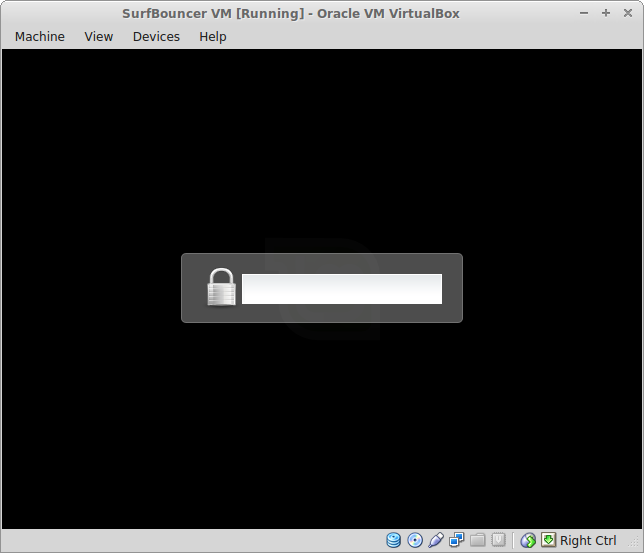
Once it loads click on user to open up the login prompt.

The default user name is User. The operating system will ask you for a password. The default password is "surfbouncer". You can change these to whatever you wish after the operating system loads.

Select the "Devices" tab and then select "Network Adapter". Click on "NAT" and make sure it is selected, as shown below.

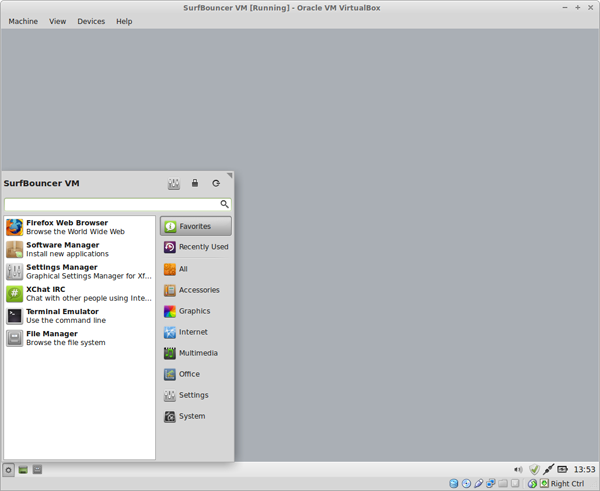
The image below shows the operating system fully booted. The arrows point to the icons that launch the VPN and the browser.
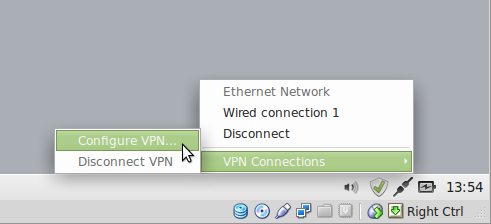
6) Click the KVpnc VPN icon. It will ask for your system password to launch (surfbouncer).

The image below shows the result of clicking on the Applications and then the Internet tab. From here you can launch Thunderbird email, Skype and more..

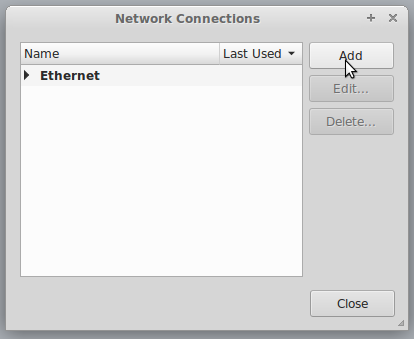
7) Click on connect and the log in window will appear. Enter your user name and password. If you wish to save it so you don't need to enter it each time click on the two save boxes shown.

After a few moments the screen above will close and the connected icon will appear in the upper right hand of the screen.

Launch the Firefox browser as shown in the image above. You will be taken to the default home page. From there, you can use the browser in any way you wish, just as you would any other browser. You are now on the Personal VPN network and unblocking web sites.

When you are finished with your session, you have the option to save the image so that you can continue exactly where you left off (you have to log in to the VPN again before proceeding) or you can shut down the machine like you would shut down your computer. Choosing to save the image will take about a minute to complete. This option is slower to close but will open almost immediately when re-launched. Shutting down the machine will result in a very fast shutdown. However, startup will require a full boot cycle. The choice is yours.
Choose "Exit" to save the image so that you can continue where you left off.

-OR-

Choose "User" and "Shut Down" to shut down the Virtual Machine.
Virtual Machine VPN Main Page